Overview:
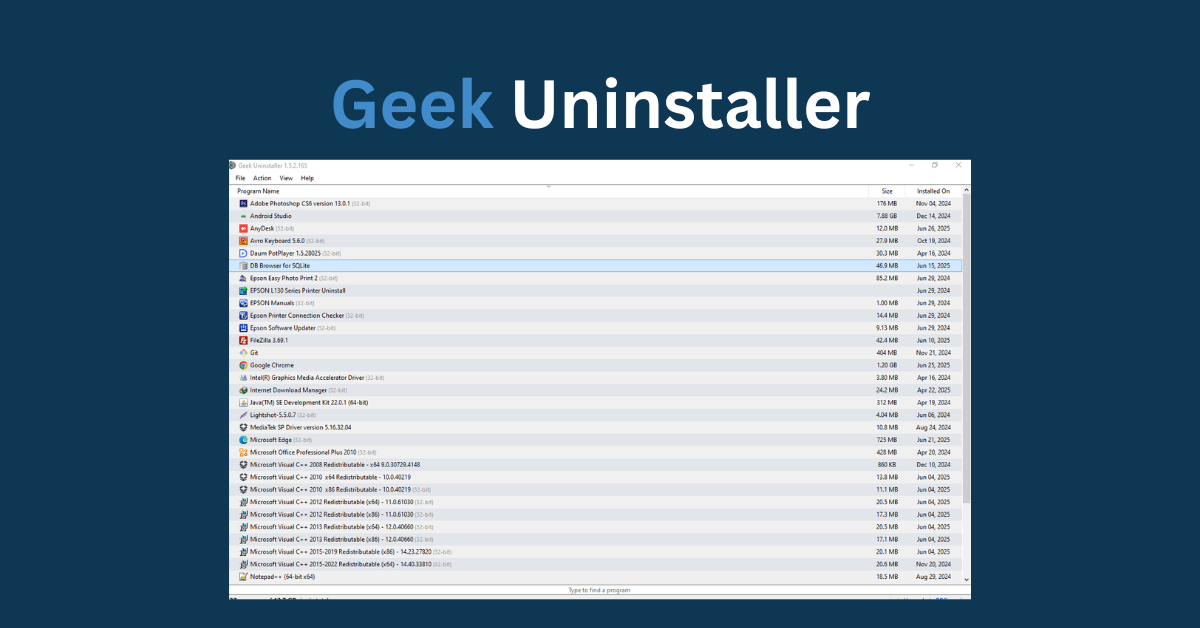
Geek Uninstaller is a fast, lightweight, and completely free software removal tool for Windows 10 and 11 users. Unlike the default Windows uninstaller, Geek Uninstaller not only uninstalls programs but also scans and removes leftover files, folders, and registry entries that clutter your system over time.
It’s 100% portable, meaning you don’t need to install it — just download, run, and clean up your PC instantly. Whether you’re trying to remove stubborn software that won’t uninstall normally or simply want to keep your Windows 10/11 system fresh and organized, Geek Uninstaller offers a clean, easy-to-use interface with strong features that speed up tasks.
Ideal for both beginners and advanced users, Geek Uninstaller helps keep your computer running faster and smoother without any complicated settings or bloat.
⭐ Key Features of Geek Uninstaller
- Lightweight & Portable: No installation needed, run directly from any folder or USB drive.
- Force Removal: Easily uninstall stubborn, broken, or corrupted programs that Windows can’t remove.
- Clean Leftovers: Automatically detects and deletes leftover files, folders, and registry entries to free disk space.
- User-Friendly Interface: Simple and fast interface, suitable for beginners and advanced users alike.
- Supports Multiple Languages: Use in your preferred language for easier navigation.
- Compatible with Windows: Works smoothly on Windows 7, 8, 10, and 11 (both 32-bit and 64-bit).
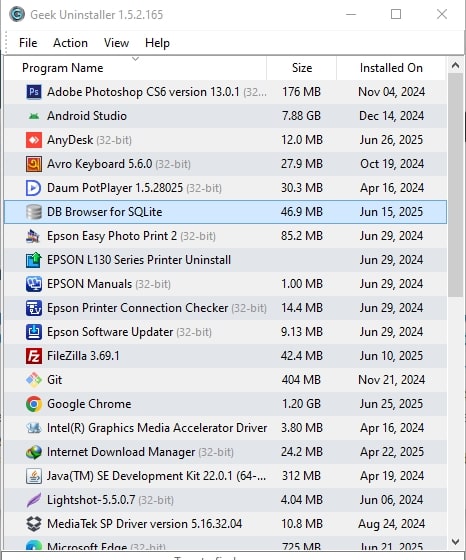
- Instant Program List: Displays all installed software instantly for quick selection and removal.
⚙️ System Requirements
- Operating System: 32-bit and 64-bit versions of Windows 7, 8, 10, and 11
- Processor: 1 GHz or faster processor
- RAM: Minimum 256 MB RAM (recommended 512 MB or more)
- Disk Space: Around 7–10 MB free disk space
- Additional: No installation required; fully portable application
🔧 How to Use Geek Uninstaller (Step-by-Step Guide)
1. Download the Tool:
Get the latest Geek Uninstaller ZIP file from the download section on this site.
2. Extract Files:
After downloading, unzip the file anywhere on your computer or a USB drive. No installation is required.
3. Launch the Application:
Open the extracted folder and double-click GeekUninstaller.exe to run the program instantly.
4. Check Installed Software:
Once opened, Geek Uninstaller will load and show a complete list of all software installed on your PC.
5. Choose the Program to Remove:
Scroll through the list or search for the software you wish to remove.
6. Begin Uninstallation:
Right-click the selected software and click on “Uninstall.” Follow any on-screen prompts to finish.
7. Use Force Removal if Needed:
If normal uninstall fails or the program remains, right-click again and select “Force Removal” to remove stubborn leftovers.
8. Clean Residual Files:
After uninstalling, review any leftover files or registry entries Geek Uninstaller finds and delete them to free space.
💰 Pricing
-
Free Version: Available for personal use with basic features.
-
PRO Version: Priced at $24.95 for a lifetime license, offering additional features.
Download Geek Uninstaller
📁 File Name: Geek Uninstaller Free Download for Windows 10 – Lightweight Remover
📦 File Size: 2.91 mb
🧩 Includes: Geek Uninstaller.exe
✅ Safe | Offline Installer | Native 64-bit Supported.
❓(FAQs) about Geek Uninstaller
Q1: Is Geek Uninstaller completely free?
A: Yes, Geek Uninstaller offers a free portable version for personal use with all essential features. There is also a paid Pro version with extra functionalities.
Q2: Can Geek Uninstaller remove stubborn or broken programs?
A: Absolutely! Geek Uninstaller’s Force Removal feature allows you to uninstall programs that standard Windows uninstaller cannot remove.
Q3: Does Geek Uninstaller support Windows 10 and 11?
A: Yes, it is fully compatible with Windows 7, 8, 10, and 11 (both 32-bit and 64-bit versions).
Q4: Do I need to install Geek Uninstaller?
A: No installation is required. It is a portable tool that runs directly after downloading and extracting.
Q5: Can Geek Uninstaller clean leftover files and registry entries?
A: Yes, after uninstalling, it scans and removes leftover files, folders, and registry entries to keep your PC clean.
Q6: Does Geek Uninstaller support removal of Microsoft Store apps?
A: Yes, Geek Uninstaller supports uninstalling Microsoft Store apps on Windows 8 and later versions.
Q7: Is Geek Uninstaller safe to use?
A: Yes, it is a trusted tool widely used by millions of users worldwide for safe and effective software removal.

![Reoon Email Verifier Review – Clean Invalid Email Lists [$79]](https://www.webalauddin.com/wp-content/uploads/2026/07/Reoon-Email-Verifier-400x250.jpg)